Create a User Group
User Groups allow you to efficiently and consistently control access privileges for multiple users.
Note: This feature is available for Organization Administrators.
To create a User Group:
-
Log into the Marigold ID User Workspace.
-
Click your profile icon in the top-right corner of the screen. The Profile Info pop-up window is displayed.
-
Within the Profile Info pop-up window, click Marigold ID Administration. The Marigold ID Administration environment is displayed, with the Users tab selected by default.
-
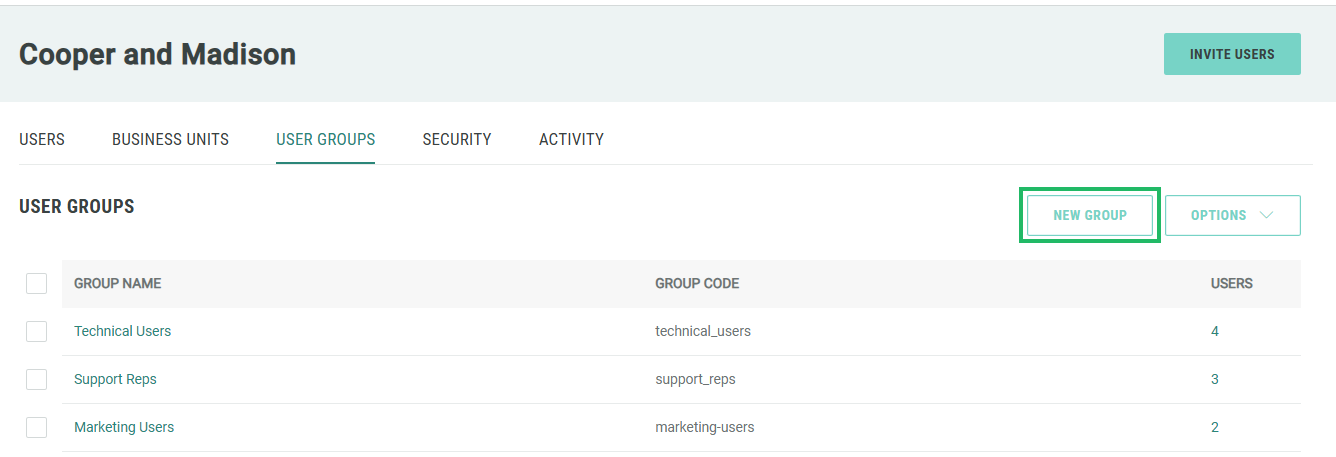
Select the User Groups tab. This tab displays all currently defined User Groups.
-
Click New Group. The New User Group pop-up window is displayed.
-
In the Group Name field, enter a name for the new User Group.
Note: Leave the IDP Identifier field blank.
-
Click Save Group. The new User Group is added to the list on the User Groups tab.
Next you need to select the Business Units and applications to which users in this User Group will be granted access.
-
Click the new User Group you just created. The User Group Details screen is displayed, with the Details tab selected by default.
-
Select Options > Add Business Units. The Add Business Units pop-up window is displayed.
-
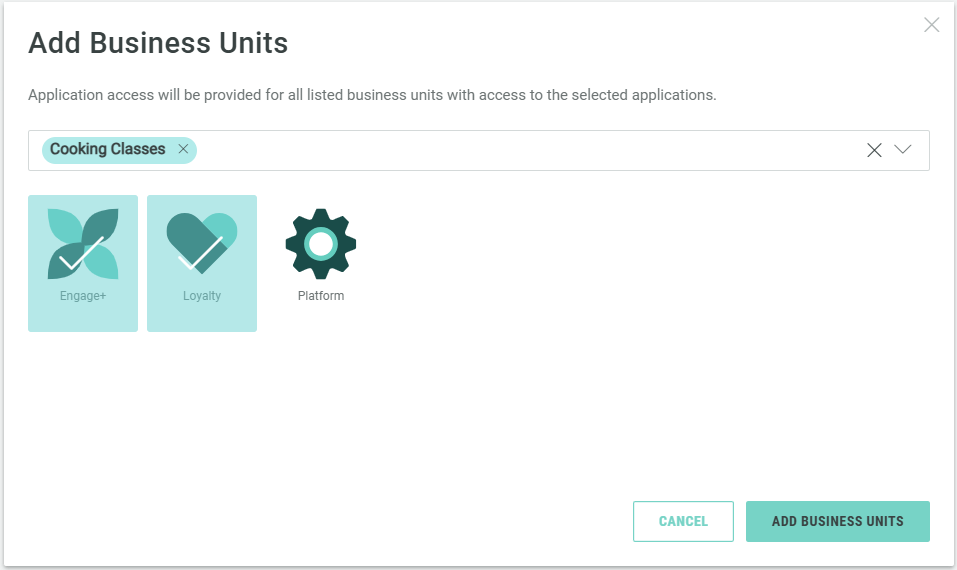
From the drop-down menu, select a Business Unit. Repeat this step to add additional Business Units.
-
The platform displays the Marigold applications associated with the Business Unit(s) you selected above. To assign an application to this User Group, click one or more application icons.
-
Click Add Business Units. A success message is displayed; click Ok.
-
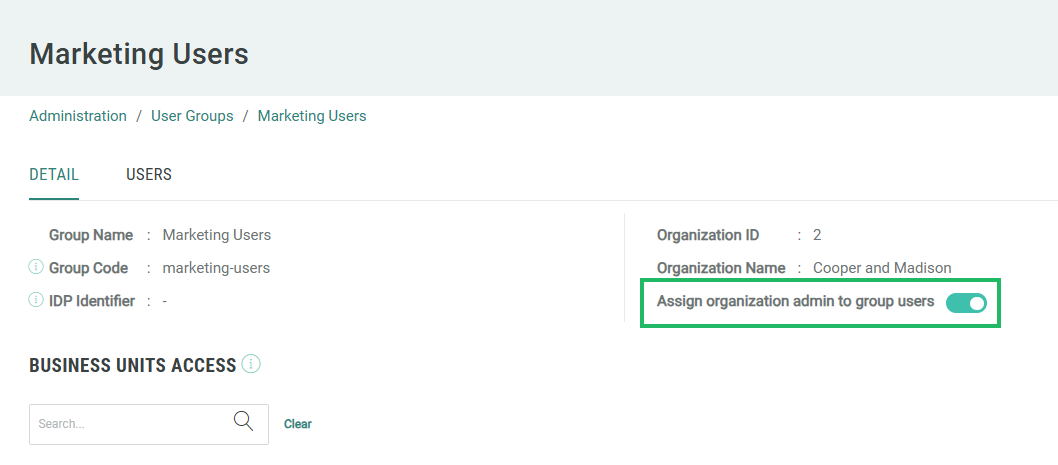
Optionally, to automatically make all users in the User Group an Organization Administrator, toggle Assign Organization Admin to Group Users to On.
Next you need to assign users to the new User Group. See Add User to a User Group for more information.
In addition, some Marigold applications provide an option called App Attributes. This option allows Organization Administrators to manually select the desired application-specific Role to which users in this User Group will be assigned, and also to customize the privileges granted to the user by that Role. See Configure Application Role for a User Group for more information.